Photoshop
tutorial
Unwanted people or objects in the back of you pictures? Here’s a step-by-step on how to remove them cleanly in Photoshop.
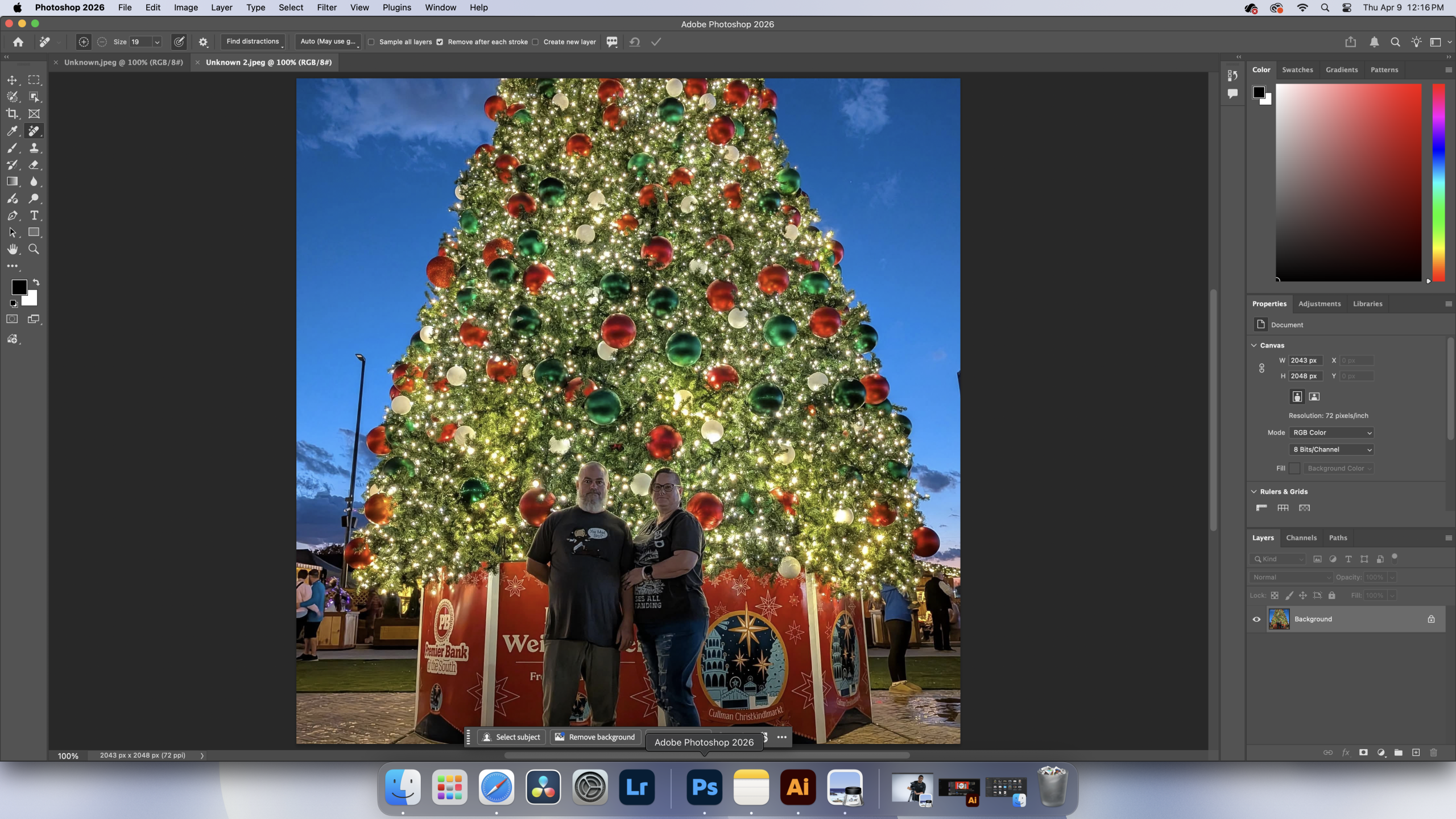
Start by loading your photo into Photoshop. As you can see, several people are in the background of this image, as well as a lamppost obstructing the skyline, and a puddle on the ground that I want gone.
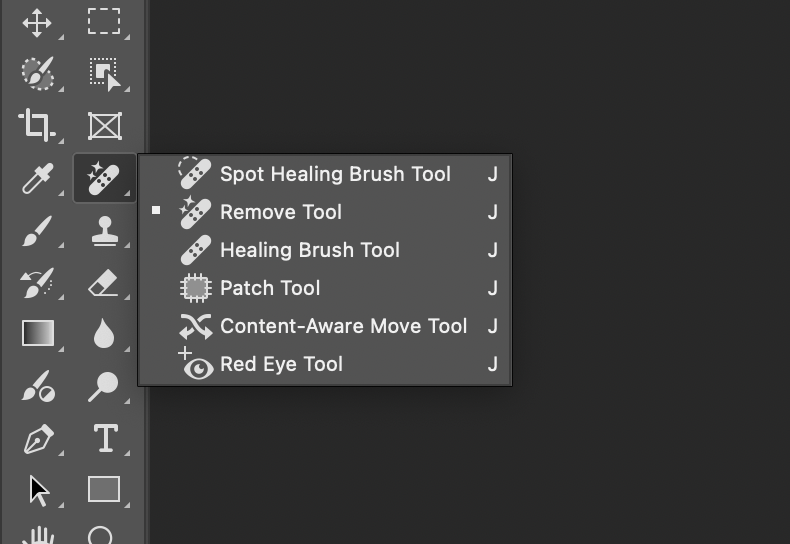
Navigate to the remove tool in your tools library, and select it from the list. Make sure that it’s the remove tool, because several of the options look very similar.
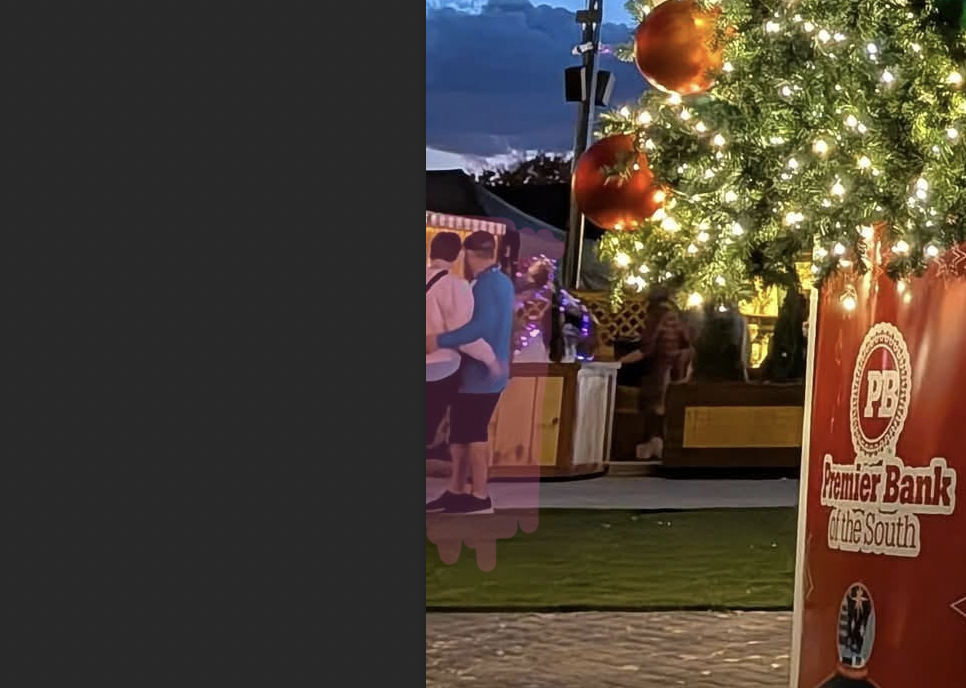
Select who or what you want to remove from the photo with the highlighted cursor. In this case, we’re going to remove these people in the back. Make sure you highlight a bit past what you want to remove, so Photoshop has an idea of the surrounding area.
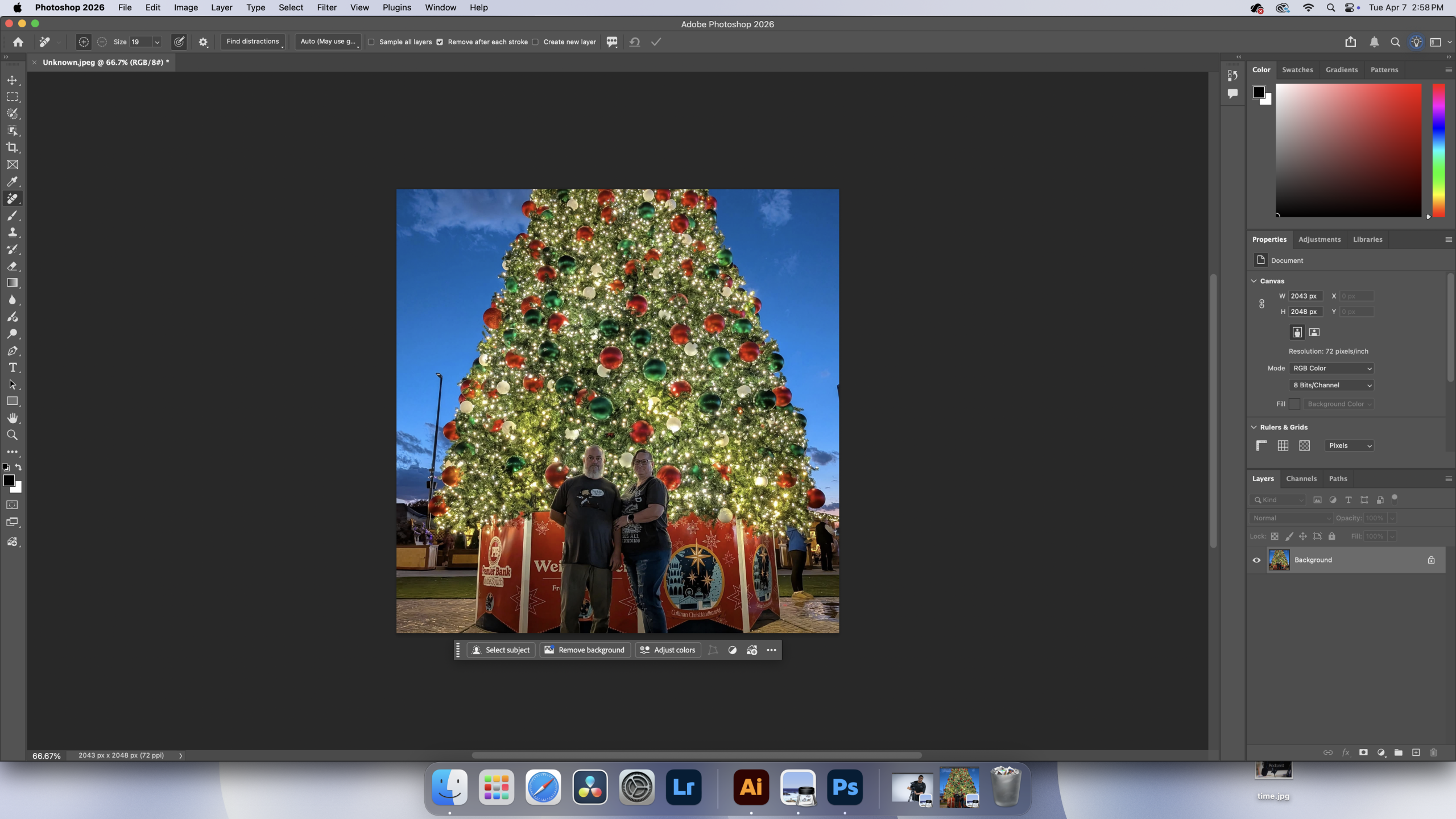
Now the people are gone, and Photoshop has filled in the space where they were pretty cleanly. Let’s clean up the rest of the image with the same tool.
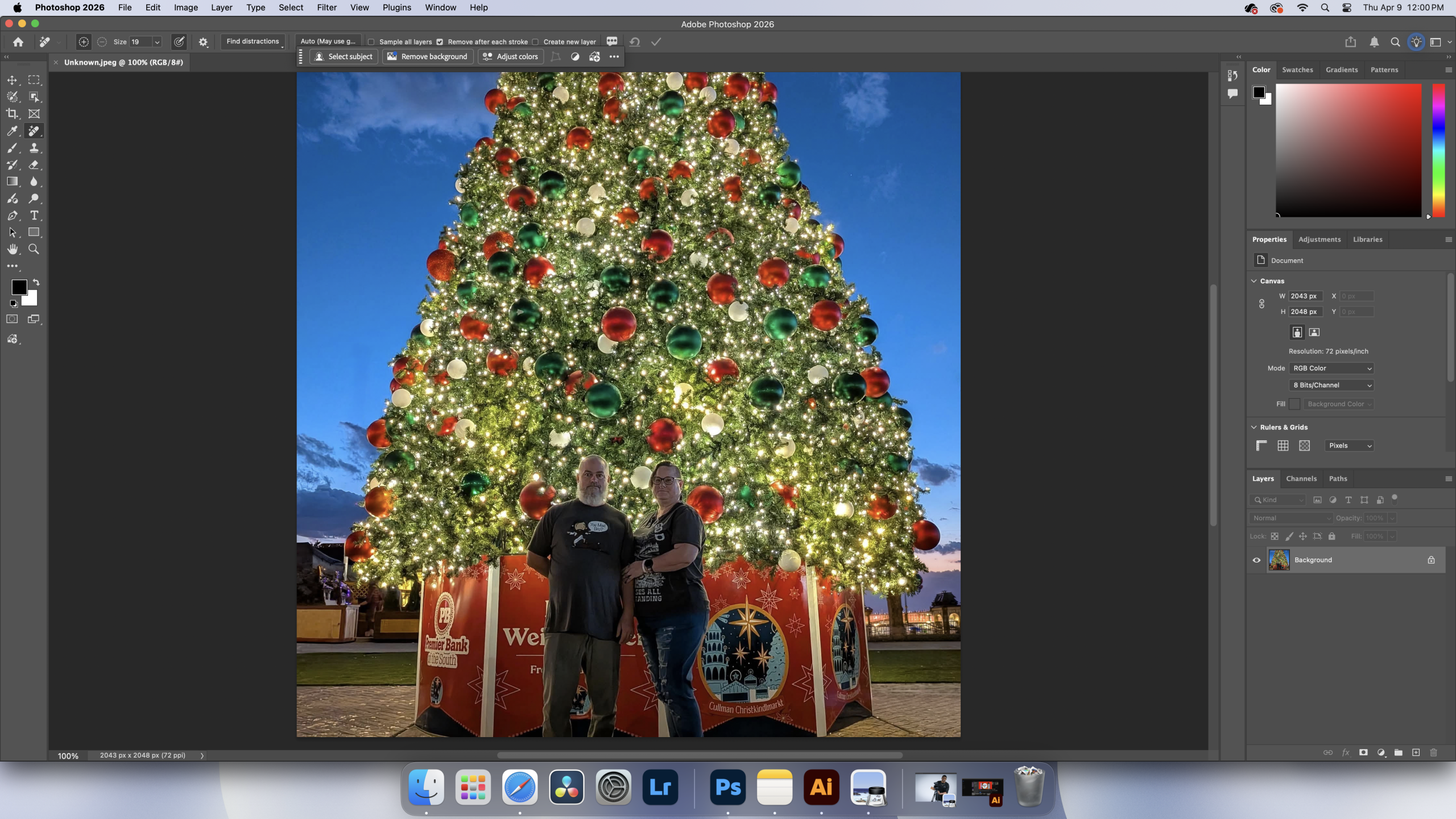
As you can see, I’ve not only removed all the extra people from the background of this photo with the remove tool, but also the lamp post and the puddle of water off the ground that was on the right. Now all that’s left to do is save your photo!