Master the Art of Photoshop Removal


Select Your Photo
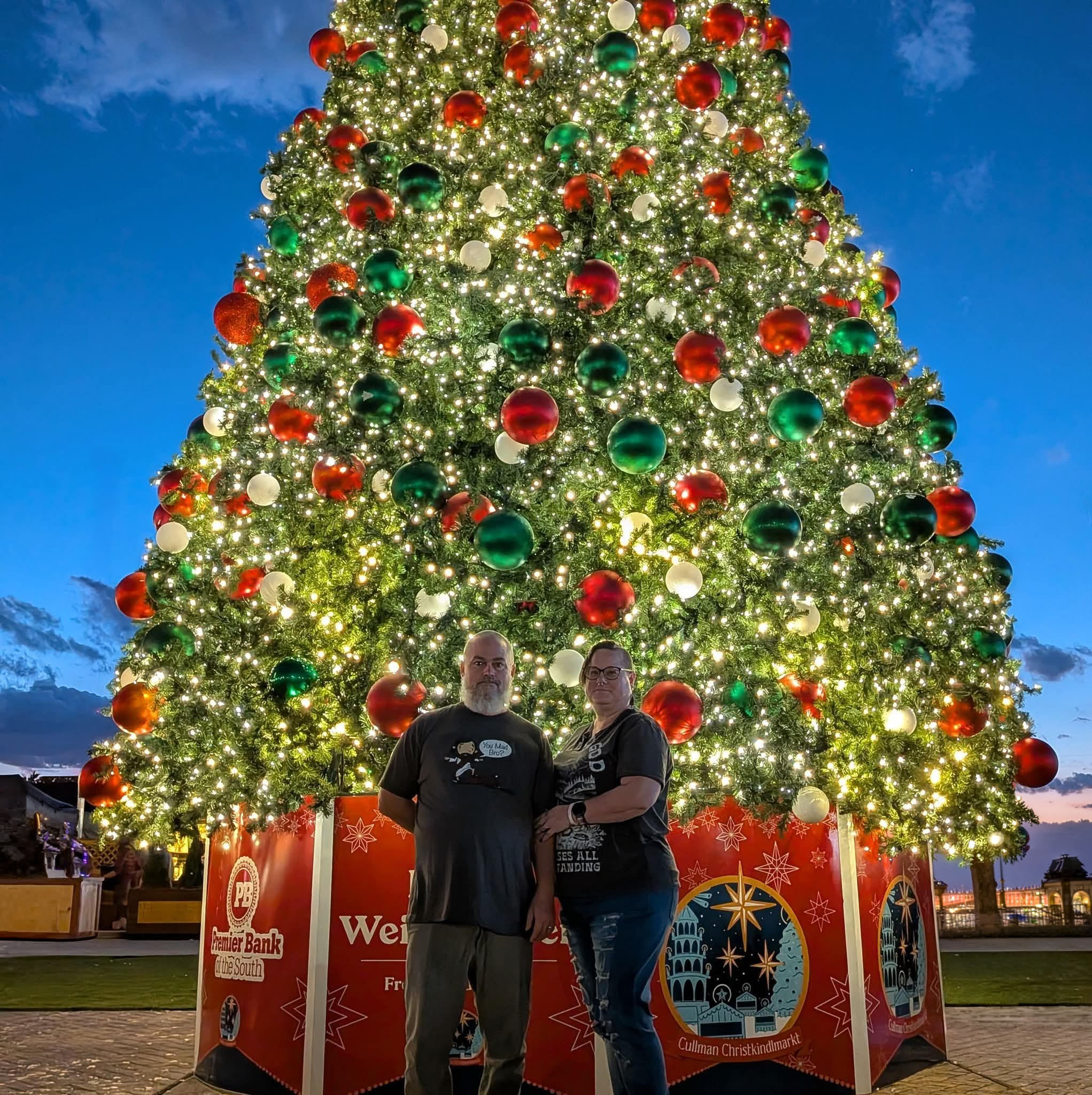
As you can see, I selected a photo with several people in the background. Let’s get rid of them!
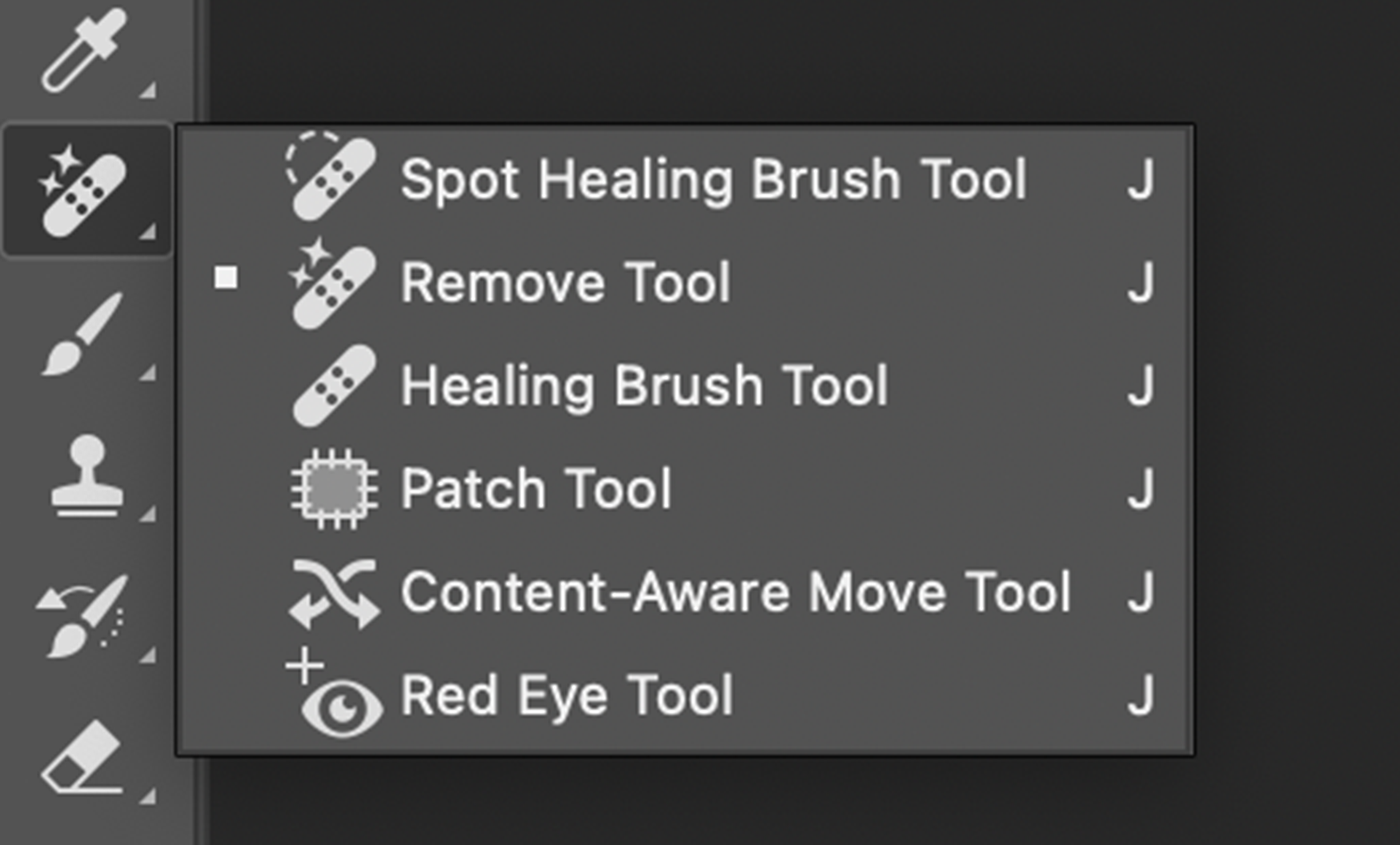
Step 1: Select Your Tool
Open your image in Photoshop and select the removal tool from the toolbar.

Step 2: Define the Area
Carefully outline the area you wish to remove, along with some of the surrounding area. Use the zoom function for precision and adjust the brush as needed.
Step 3: Let Photoshop Do Its work
Photoshop will automatically remove whatever you’ve outlined and generate what it thinks should be in its place. It might take a few tries, but the outcome is a clean, unblemeshed background.